How to Organize Your Music Library
How should you organize your music library? We’ve all been there, searching through countless binders and folders to find that one piece of music you know you have somewhere. It isn’t fun. And let’s be honest, taking years’ worth of music and knowing where everything is seems daunting. Who would even know where to start? And isn’t it challenging to keep up with as your library expands or you purge old music?
These are the questions I asked myself as my music library became overwhelming. I searched and searched for a system, app, or anything else that would make this process any easier. I found nothing that suited my needs, so I made my own system.
It has worked like a charm. I have peace of mind knowing exactly where everything is, and adding to it is a breeze. If colleagues ask to borrow a piece or a book, I can tell them where to find it without me even having to be there. Better yet, I’ve digitized much of my library to send it to them with a few simple clicks. With my lesson students, I can sit with them as they sightread their next piece from my iPad while simultaneously sending the sheet music to their parents from my phone. This system has eased friction and uncertainty about where my sheet music is. I love it!
You might also like: How I Track My Performances in Notion
Digital vs Physical
Should you organize your music library be digital or physical? Each has benefits, but keeping it digital is the way to go. Here are some of the reasons why.
- It’s easily editable. There are no more erasers, whiteouts, or wasted paper. Simply add new columns and backspace on songs you’ve removed, and you’re done.
- Access it from anywhere. As long as your phone is with you, you can access your library. From being as small as being in a different room to being across the state at a convention, your music library takes up no extra weight or space.
- There is endless room to grow. You aren’t limited by the number of pages a binder can hold. You don’t need to start a new page, re-copy your columns and setups, or anything else. It’s simply ready to expand with no additional materials required. Which brings me to my next point…
- Adding music is frictionless. You don’t have to search for a pen, realize you’re out of ink, or look for labels. You just start typing, and the job is done.
If you’re still not convinced you want to move your music library to the digital world, it’s okay. Doing this in a physical format is possible, but it will require extra steps, requirements, and effort. If that’s your choice, you can skip the next section.
Why I Suggest Notion to Organize Your Music Library
There are tons of apps and programs out there that would work. For a long time I used Google Sheets, and it worked great. Microsoft Excel would work well, too. Nowadays, I use an app called Notion. If you haven’t heard of it, it is an all-in-one workspace that blends all your productivity apps into one. I’ve used it for everything, from life admin to business upkeep. I don’t know how I stayed organized without it!
For the purpose of this guide, I will show you my library database setup in Notion. But any program that allows you to use tables will work just fine.
Getting Started
Throughout the rest of this guide for how to organize your music library, I emphasize one main point: make it functional. As I created my list from scratch and all the trial and error that came with it, I would only add something as the need arose. This is a good rule of thumb: Don’t just add extra layers of organization to make you feel good. Trust me, I’ve been there; it isn’t worth it. Don’t add it unless you will use each feature you add.
First thing first: set up your columns.
The columns I have are:
- Title of Song
- Composer / Arranger
- Genre
- Instrumentation
- Recording
- Notes
- Book
I play multiple instruments in many genres, so my system is a bit more complex. If you don’t need as many categories, simply delete them.

Genres
My genres are color-coded as tags. When I used Google Sheets, I just input these categories as text. If I wanted to sort, I would reorder the spreadsheet to be alphabetized by that column, and it would group them together that way.
Why it’s functional: These tags enable me to effortlessly browse my music if I have a gig coming up. It cuts down on stress and time. For example, if I must sing a church solo, I’ll only view the “Sacred” category. Or say I’m hired as entertainment for an event or party, I’ll browse my jazz and pop categories. If I search for new music for a beginner student, I’ll view the “beginning piano” category. Since starting this, I have cut down countless hours of searching for types of songs to fit a certain occasion.
Instrumentation
Depending on your goals and needs, this category may not be necessary. If you primarily own music for trumpet or band, you wouldn’t need to list that over and over. In my case, I have a hand in the band, orchestra, and choir world, in addition to solo piano and voice. I also enjoy gathering resources and materials that I stumbled across to improve my musicianship.
My instrumentation is set up the same way as my genres: as tags. Again, color-coded to satisfy the neurotic structuring in my brain.
Why it’s functional: If I’m browsing my music to fulfill a need (gig, request, lending to a friend, etc.) but look by genre alone, I’m missing the point. If I’m looking through Christmas music to entertain on my own at a party, I don’t want to see brass quintets or string trios in my search. I am only one person! Seeing these come up in my search only takes time and energy (especially if I’m getting frustrated as I scroll past all the irrelevant instruments). Also, if a cello friend asks to borrow a score, I don’t want to be sifting through my trumpet solos to find what he wants. Being able to filter by instrument keeps my search relevant to the task at hand.
Notes
I don’t use this column for most of my music (keeping things functional, remember, no fluff!). Still, for the songs I do, it’s helpful to jot down the context of when I learned the piece, helpful links that pertain to the piece, or notes regarding the quality of the arrangement.

Book
Since a majority of my music is digital, I only write in the Book column if the music is physical. I will usually write the title of the book in which the song is found; if the entry itself is the book’s name, I will write “Yes.”
Why it’s functional: When looking for a specific song, I sometimes get flustered when I do not find it. Then I discovered it was buried in a book the whole time. I don’t have all my books and their contents memorized, so being able to refer to this section is helpful.
Changing Views
We have all this relevant information; now, what is the best way to optimize it? This is one of the many reasons I think Notion is the best app to organize your music library. You input the information once and now have countless ways of organizing it. Here are the four main ways I have it done, and then here are some quick tweaks I use when browsing for a gig.
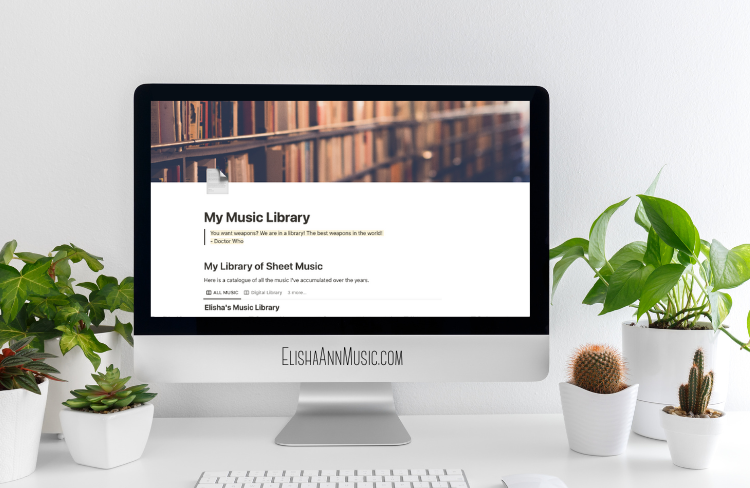
Most of the time, I view my music in the All Music view. This is the default for me. I can also see my whole digital or physical library just by clicking a button.
There’s one more view, which I use for filtering specific details. This is a Kanban board set to show my music by genre. With just another few clicks, I can narrow my search even further. It’s powerful and helpful when preparing for gigs.
Adding Songs
Once you have your library organized, maintaining it is pretty easy. Whenever I get a new song, I’ll add it to my Google Drive homepage if it’s digital, and if it’s physical, I’ll make a note in my inbox to add it to my library database. I go through my Drive weekly and my physical inbox monthly to catalog the things that need documenting. It’s pretty simple to keep up with! If you don’t already, I recommend creating a life admin day to catch up on these small tasks that sometimes get away from us. It’s the #1 thing that has kept me organized, not just as a musician but as a person in general!
Organizing Music You Don’t Own
You now have this beautiful database of music you own. But what about music you don’t own but are familiar with? As an addition to your music library, I suggest setting up an “intangible” library of music you don’t have in your possession but may want to use in the future. This includes music you may want to program at a future concert, an arrangement of a Christmas tune you found that isn’t relevant at this time of year, or a song you borrowed at the request of a patron for a gig. Write down the information about the song, including the context of where you heard it and a link to purchase it.
That is how I do it! This system has simplified my life and saved me time and money. Did I miss anything in how to organize your music library? Let me know in the comments below!
No Comments
Sorry, the comment form is closed at this time.